Intro
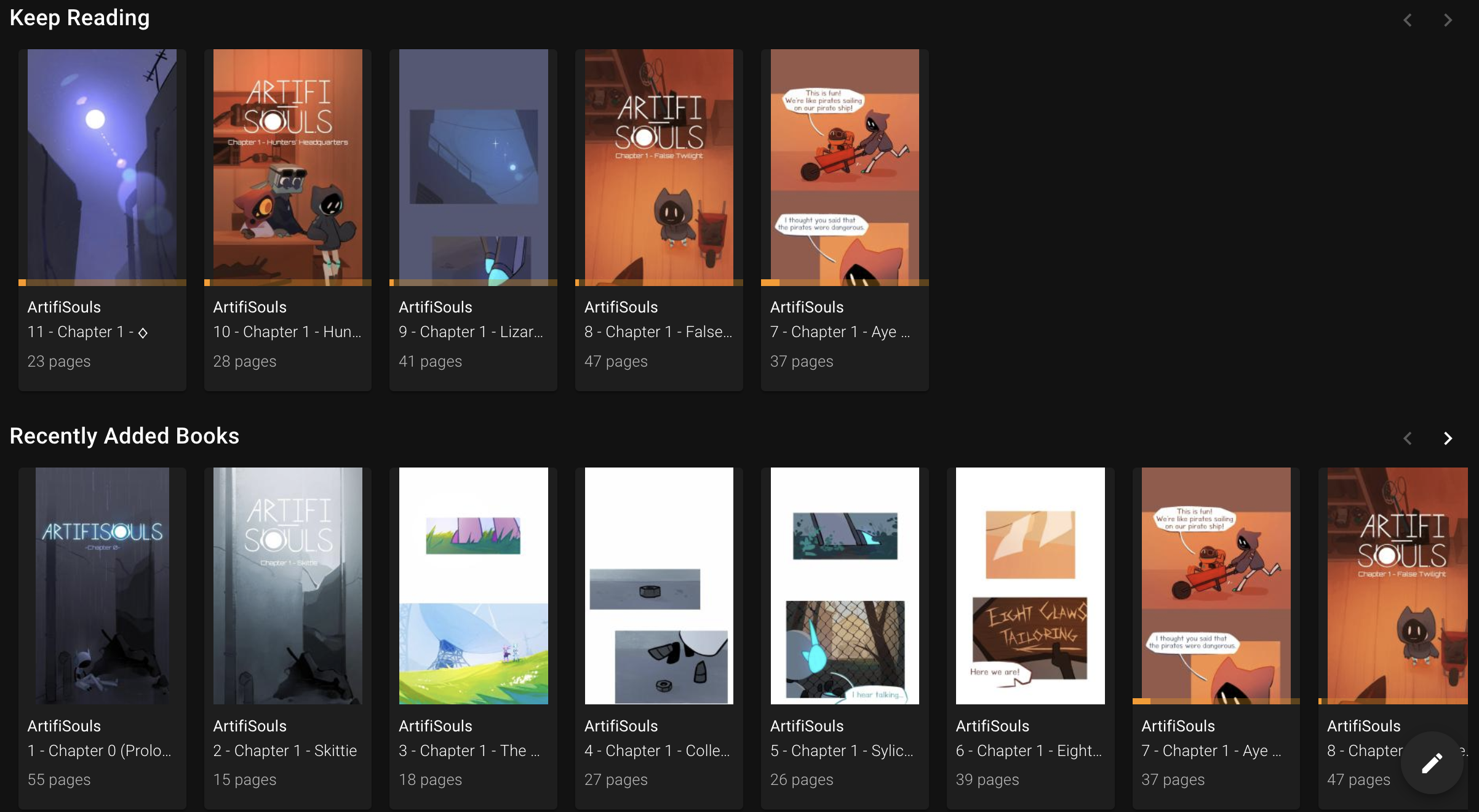
There’s some pretty lightweight tasks that I run on a regular basis on my laptop so I wanted to figure out how to automate them on my Unraid NAS so that I don’t have to manually trigger them (or keep my laptop running with cronjobs). One of them was a set of python tasks to keep track of my finances, whereas the seconds was a WebToon downloader so that I can automate its ingestion into my Komga server to read them offline in my tablet.
Workflow
The cleanest and most maintainable idea I came across was to use User Scripts to launch a docker container that would, in turn, perform all the tasks required for the automation.
User Scripts
As usual with anything Unraid, I followed the Uncast Show’s tutorial to get User Scripts setup. Nothing too unfamiliar here, just following instructions got me well on my way to setting up this cool application that allows the scheduled launch of bash scripts.
Docker Containers
I had already used docker in the past to deploy some Webinars so feel free to skim through that post for more information. For this application I grabbed the python:3.11-slim container and set it up following this pattern as a template for both applications:
docker run \                              # Creates and runs a new container from an existing image
  --rm \                                  # Image gets cleaned up after run
  -v PATH_ON_SYSTEM:/PATH_IN_DOCKER:rw \  # Maps the NAS directory to nas_dir in Docker
  -w PATH_IN_DOCKER \                     # Sets nas_dir as the working directory in Docker
  python:3.11-slim \                      # Base lightweight Docker image
  bash -c "BASH_COMMANDS"                 # Launches the following bash instructions after launching Docker
One slight modification being the replacement of the last line with a heredoc to call multiple bash commands to keep things clean:
bash -c <<EOF "
  BASH_COMMAND_1
  BASH_COMMAND_2
  ...
  BASH_COMMAND_N
"
EOF
With this in shape, I started working on both automation scripts.
Applications
Both applications depend on python but finances one only requires the installation of dependencies from a txt file, whereas the WebToon one does require the installation of pipx in the system, so we will tackle them in that order.
Python Script
I am not going to go too deep into the specifics of my finances application because of privacy concerns but following this pattern should get a basic application launched along with its requirements:
#!/bin/bash
NAS_DIR="/nas_dir"
docker run --rm \                                                 # Launch a docker container and remove when finished
  -v "${NAS_DIR}:/docker_dir":rw \                                # Mount NAS folder into an internal docker directory
  -w /docker_dir \                                                # Set working directory inside docker session
  python:3.11-slim \                                              # Use this lightweight python container
  bash -c <<EOF "                                                 # Launch the following commands as heredoc
    pip install --no-cache-dir -r ./scripts/requirements.txt      # Install all dependencies from txt file
    python ./scripts/main.py                                      # Launch main python script
"
EOF
which is a good place to get started for any automated python application.
WebToon Scraper
Now, for the more complex one, I found the Webtoon-Downloader tool, tried it out and particularly liked that it accepts a --latest tag to scrape the last entry of each comic so I decided to use it for my script. Getting this one setup required a couple of additional steps, as Webtoon-Downloader needs to be installed with either pipx or uv. To do this, the following lines needed to be added to the heredoc before launching the main bash script:
apt update -y                       # Refresh package database
apt install pipx -y                 # Install pipx
pipx ensurepath                     # Add the pipx directory to PATH
pipx install webtoon_downloader     # Install the webtoon application
source ~/.bashrc                    # Source bashrsc to update variables
With that modification in place, the new Docker command looks like this:
#!/bin/bash
NAS_DIR="/nas_comics"
docker run --rm \
  -v "${NAS_DIR}:/docker_dir":rw \
  -w /docker_dir \
  python:3.11-slim \
  bash -c <<EOF "
    apt update -y
    apt install pipx -y
    pipx ensurepath
    pipx install webtoon_downloader
    source ~/.bashrc
    bash ./scripts/toonscraper.sh       # Main file containing the application
"
EOF
Before describing the toonscraper.sh file, one thing I wanted to tho was to be able to add comic sources and folder names to store them in and read them from a text file. This file, urls.csv, follows the pattern:
FOLDER_1,WEBTOON_URL_1
FOLDER_2,WEBTOON_URL_2
...
FOLDER_N,WEBTOON_URL_N
So, to properly scrape the folder-URL pairs and store the scraped volumes accordingly, the toonscraper.sh file contains the following code:
FNAME='./scripts/urls.csv'            # Relative path of the URLs filke
while IFS=, read -r fldr url; do      # Iterate over each line in the file and store each pair into two variables
    webtoon-downloader "$url" \       # Startup webtoon-downloader with the comic's URL
        --latest\                     # Get the latest volume
        --save-as cbz\                # Store in CBZ format
        --out "./webtoons/$fldr"      # In the corresponding folder
done < $FNAME
Where the main folder structure would look like:
/webtoons
  FOLDER_1
  FOLDER_2
  ...
  FOLDER_N
/scripts
  toonscraper.sh
  urls.csv
User Scripts Automation
Finally, we copy and paste our applications into the the User Script application and schedule its launches using traditional cronjob) syntax:
<ref=”https://www.webtoons.com/en/canvas/artifisouls/list?title_no=796350”>
And that is pretty much it! We wait for the times to come and see our scripts get launched!
Final Thoughts
This has been a pretty fun development process and I am very much looking forward into automating some more tasks in my NAS. Additionally, here are ways to improve this application like keeping the docker container alive and just triggering the script relaunches but both applications are quite quick, so I will test them out in their current form for a while before making any changes.